
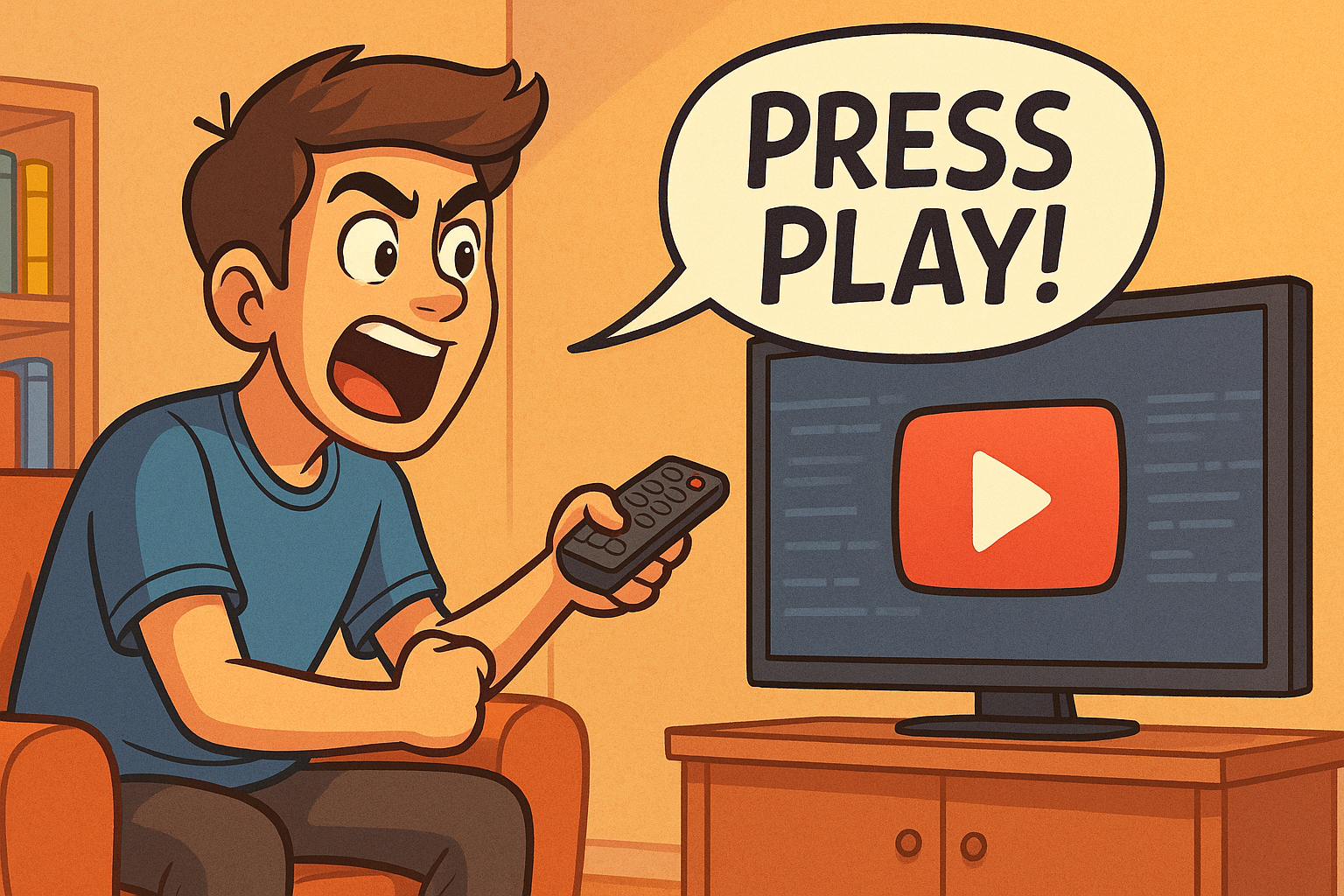
In today’s fast-paced online world, visuals do more than just decorate your posts — they direct attention, signal intent, and influence clicks. One of the simplest yet most effective ways to boost engagement is by adding a play button overlay to an image.
Why? Because a play button instantly communicates “this is a video.” Even if the image isn’t an actual video frame, viewers associate the icon with content they can watch. That small cue can be enough to capture attention, increase click-through rates (CTR), and drive more interaction with your content.
The good news is that you don’t need Photoshop or complicated design software to add a play button. With our free Add Play Button to Image tool, you can turn any image into a video-style thumbnail in just seconds — no design skills required.
Why Add a Play Button to Images?
Before diving into the “how,” let’s look at the “why.”
1. Increase Click-Through Rates
Studies in digital marketing show that users are naturally drawn to video content. A simple play icon makes an image look interactive, and viewers are more likely to click on it than on a static graphic.
2. Improve Social Media Engagement
Platforms like Facebook, Instagram, and LinkedIn prioritize content that looks like video because audiences tend to pause and engage with it. Adding a play button gives your post that “video” feel, even if you’re linking to a page or article.
3. Make Thumbnails More Recognizable
If you run a YouTube channel or embed videos on your blog, consistent thumbnails with a bold play button signal professionalism and make your content easier to recognize at a glance.
4. Email Marketing Boosts
In email campaigns, using an image with a play button overlay often increases CTR because subscribers expect video content. Even if the “video” is just an image linking to your site, the button sets clear expectations.
Meet the Add Play Button to Image Tool
The Add Play Button to Image tool from The Tool Bakery makes this process effortless. It’s designed for creators, marketers, educators, and anyone who wants to make images more engaging without touching a design program.
Here’s how it works:
- Upload your image — or paste in an image URL.
- Automatic overlay — the tool instantly applies a realistic red rectangle with rounded corners and a centered white triangle (styled like YouTube’s play button).
- Download your updated image — save it as a ready-to-use file for social media, emails, blogs, or presentations.
Because everything runs directly in your browser, your image never leaves your device. There’s no data storage, no accounts, and no privacy risk.
Key Features That Save Time
Unlike design software that requires layers, filters, and exporting, this tool focuses on one thing — adding a clear, eye-catching play button overlay. Features include:
- Upload from your computer or paste an image URL.
- Automatically centered red play button styled after YouTube.
- 100% browser-based processing for speed and privacy.
- Clean, responsive interface that works on desktop and mobile.
- Instant download of the updated image.
No design knowledge needed, no extra steps — just fast results.
Practical Use Cases
This tool fits into many real-world workflows. Here are some examples of how you might use it:
YouTube Thumbnail Creators
Even if you already have custom thumbnail designs, adding a play button overlay makes them more recognizable as “clickable video content.”
Social Media Marketers
Running an ad campaign or organic post with a link to a video? Adding a play button to the preview image increases the chance people will stop scrolling.
Email Campaigns
Many email platforms don’t allow direct video playback inside emails. The next best option is an image with a play button that links to your video. It gives subscribers the visual cue they expect.
Bloggers and Website Owners
If you embed a video in your blog post, adding a play button to the featured image makes it clear that readers can expect multimedia content.
Online Educators
Sharing recorded lectures or course content? A play button on your preview images helps students identify videos quickly in course libraries or newsletters.
How to Use the Tool Step-by-Step
Here’s a simple guide to creating your first play-button overlay:
- Open the tool: Go to Add Play Button to Image.
- Upload your file: Drag and drop your image, or paste a direct image link if your file is hosted online.
- Preview instantly: The tool will show your image with the red play button applied at the center.
- Download: Click the download button to save the updated image to your computer.
- Use anywhere: Upload the new image to social platforms, add it to blog posts, or insert it into emails.
The whole process usually takes less than a minute.
Tips for Making the Most of Play Button Images
Adding the overlay is easy, but using it effectively can make all the difference:
- Use high-resolution images: A blurry background won’t look professional, even with a play button.
- Choose relevant visuals: Make sure the background image matches the video or content you’re promoting.
- Be consistent: Use play buttons on all your video-related posts so your audience recognizes the format.
- Test performance: Try A/B testing posts with and without play buttons to see the difference in engagement.
- Pair with strong CTAs: In emails or landing pages, combine the image with text like “Watch Now” to encourage clicks.
Why This Online Tool is Better Than Manual Design
Of course, you could open Photoshop, create a red rectangle, add a triangle, position it, and export your file. But that takes time, effort, and software access.
The Add Play Button to Image tool is:
- Faster — just a few clicks and you’re done.
- Easier — no design skills required.
- Free — no subscriptions or software costs.
- Private — your files never leave your browser.
For anyone who just wants a quick solution, this is the most practical approach.
Start Creating Click-Worthy Images Today
Whether you’re running a YouTube channel, managing social media campaigns, or simply sharing content with friends, a play button overlay is one of the simplest ways to boost clicks and engagement.
Instead of wrestling with design tools or hiring someone to create thumbnails, you can use the Add Play Button to Image tool to get results instantly. It’s free, private, and works entirely online.
👉 Try it now: Add Play Button to Image
Turn any static image into a video-style thumbnail in seconds — and watch your engagement grow.