
Your email signature is more than just your name at the bottom of a message—it’s a professional email footer that reinforces your brand, builds trust, and makes it easy for people to connect with you.
With the right design, an HTML email signature can work like a digital business card in every message you send. And the good news? You can create one in minutes using our free Email Signature Generator—no coding or design skills required.
Why a Professional Email Signature Matters
Every email you send is a chance to make a strong impression. A clean, branded email signature signals credibility, professionalism, and attention to detail. Here’s why it’s worth setting up:
- Brand Recognition – Use your company logo, brand colors, and consistent fonts to stay memorable.
- Trust & Credibility – Show your role, contact details, and professional links so recipients know you’re legitimate.
- Convenience – Include clickable links to your website and social media profiles for quick access.
- Networking – Every signature is a networking opportunity—make it easy for people to connect.
Essential Elements of a Professional Email Signature
Whether you’re building your first signature or upgrading an old one, make sure it includes:
- Full Name – Your professional name as you want it displayed.
- Job Title & Company – Clearly identify your role and organization.
- Phone Number – Give recipients a direct way to reach you.
- Website Link – Point to your business site, portfolio, or landing page.
- Social Media Icons – Add relevant professional profiles (LinkedIn, Twitter, etc.).
- Brand Colors – Match your company branding for a polished, cohesive look.
💡 Tip: Keep it clean—avoid too many colors, fonts, or oversized images that could break in some email clients.
How to Build Your Signature with Our Free Email Signature Generator
You can create a Gmail, Outlook, or Apple Mail signature in just a few minutes. Here’s how our free tool works:
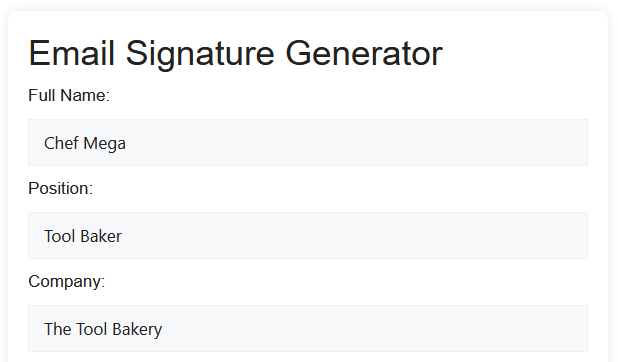
- Enter Your Details – Name, title, company, email, phone, website, and social links.
- Customize Colors – Pick font and background colors, or enter your brand’s HEX codes.
- Preview in Real Time – See exactly how your signature will look on desktop and mobile.
- Copy the HTML Code – One click and your ready-to-use HTML signature is saved.
- Paste Into Your Email Client – Add it to Gmail, Outlook, or Apple Mail in seconds.
🔒 Your data stays private—our generator runs entirely in your browser.
Installing Your Signature in Gmail, Outlook, or Apple Mail
Gmail
- Settings (gear icon) → See all settings → General.
- Scroll to Signature → “Create new” → paste your HTML.
- Set defaults for new emails and replies → Save.
Outlook
- File → Options → Mail → Signatures.
- New → paste HTML → set defaults → OK to save.
Apple Mail
- Preferences (Command + ,) → Signatures.
- Select account → Add (+) → paste HTML → uncheck “Match default message font.”
Example of a Clean Email Signature

Ready to Upgrade Your Emails?
Stop sending plain text sign-offs. A professional email signature can promote your brand, boost trust, and make every email count.
👉 Create your free email signature now—ready in under 5 minutes.